What is Hermes Agent?
Hermes Agent is an autonomous agent built by Nous Research. The docs describe it as a self-improving agent with a built-in learning loop. It creates skills from experience, improves them as it works, nudges itself to keep knowledge, and builds a model of who you are across sessions.
It is not a coding copilot tied to an IDE, and it is not a chatbot wrapped around one API. The docs say it gets more capable the longer it runs. It can live on a small VPS, a GPU cluster, or serverless infrastructure such as Daytona or Modal, and you can talk to it from Telegram while it works on a cloud machine.
Hermes runs terminal commands on your behalf and shows you the results. That is what makes it useful, and it is also why what you allow it to do matters as much as what it can do.
What it can do
- Remembers across sessions. Two small memory files, MEMORY.md (2,200 characters) and USER.md (1,375 characters), load into the system prompt at the start of each session. Past conversations are searchable.
- Writes its own skills. A skill is a SKILL.md file with a name, a description, and a step-by-step procedure. The agent loads a skill's full content only when a task needs it, and every installed skill becomes a slash command.
- Runs in seven terminal backends: local, Docker, SSH, Daytona, Singularity, Modal, and Vercel Sandbox.
- Works through chat apps. One gateway serves more than 20 platforms, including Telegram, Discord, Slack, and WhatsApp.
- Runs on a schedule. Built-in cron jobs can deliver results to any connected platform.
- Delegates. It can spawn isolated subagents for parallel work.
- Connects to tools. It supports MCP servers, and the docs list more than 60 built-in tools.
Each of these features can reach further than a chat window. That is why the setup order in the next section matters.
Hermes Agent setup, step by step
Here is how to install Hermes Agent on each system. On macOS or Windows, the quickstart recommends the Hermes Desktop installer. Download it from the Hermes website and run it. If you want a command-line install only, use the install script instead.
Linux, macOS, or WSL2
curl -fsSL https://hermes-agent.nousresearch.com/install.sh | bashWindows (native)
iex (irm https://hermes-agent.nousresearch.com/install.ps1)When the install finishes, reload your shell, for example with source ~/.bashrc or source ~/.zshrc.
Choose a model
The quickstart calls this the most important setup step. Run hermes setup for the guided wizard, or hermes model to pick a provider and model directly. On a fresh install, the wizard offers three modes:
| Mode | What it does |
|---|---|
| Quick Setup (Nous Portal) | OAuth login, with no API keys to manage. Sets up a model and the Tool Gateway tools. The recommended fast path. |
| Full Setup | Walks through every provider, tool, and option. You bring your own keys. |
| Blank Slate | Starts with only the provider and model, the file operations toolset, and the terminal toolset. Web, browser, code execution, memory, cron, skills, and MCP stay off until you enable them. |
The fastest path is hermes setup --portal. It logs you in, sets Nous as the provider, and turns on the Tool Gateway in one command. The docs also list many other providers, including OpenRouter, Anthropic, Google AI Studio, DeepSeek, and custom endpoints for local servers such as vLLM, SGLang, and Ollama.
Check one requirement before you pick a model. Hermes needs at least 64,000 tokens of context. The quickstart says models with smaller windows are rejected at startup. If you run a local model, set its context size to at least 64K, for example --ctx-size 65536 for llama.cpp.
Where settings live
Secrets such as API keys go in ~/.hermes/.env. Other settings go in ~/.hermes/config.yaml. The hermes config set command writes each value to the right file. For example, this sets the model:
hermes config set model anthropic/claude-opus-4.6Hermes Agent Docker sandbox
For safety, the quickstart suggests running the agent's commands in a Docker container or on a remote server. To switch the terminal backend to Docker, run:
hermes config set terminal.backend dockerOnce the backend is Docker, Hermes skips the dangerous-command check for commands inside the container. The safety section below explains what that means.
Run a first chat
Start with hermes, or with hermes --tui for the newer terminal interface. Use a prompt that is specific and easy to check. A working setup passes four checks: the banner shows your model and provider, Hermes replies without error, it can use a tool when it needs one, and the conversation carries on for more than one turn. Then run hermes --continue to confirm that sessions resume.
If something breaks
The quickstart's recovery order is hermes doctor, then hermes model, hermes setup, hermes sessions list, hermes --continue, and hermes gateway status. Start with doctor, then check the model and provider, since a wrong provider is the first thing the quickstart lists.
Safety controls to know before you rely on it
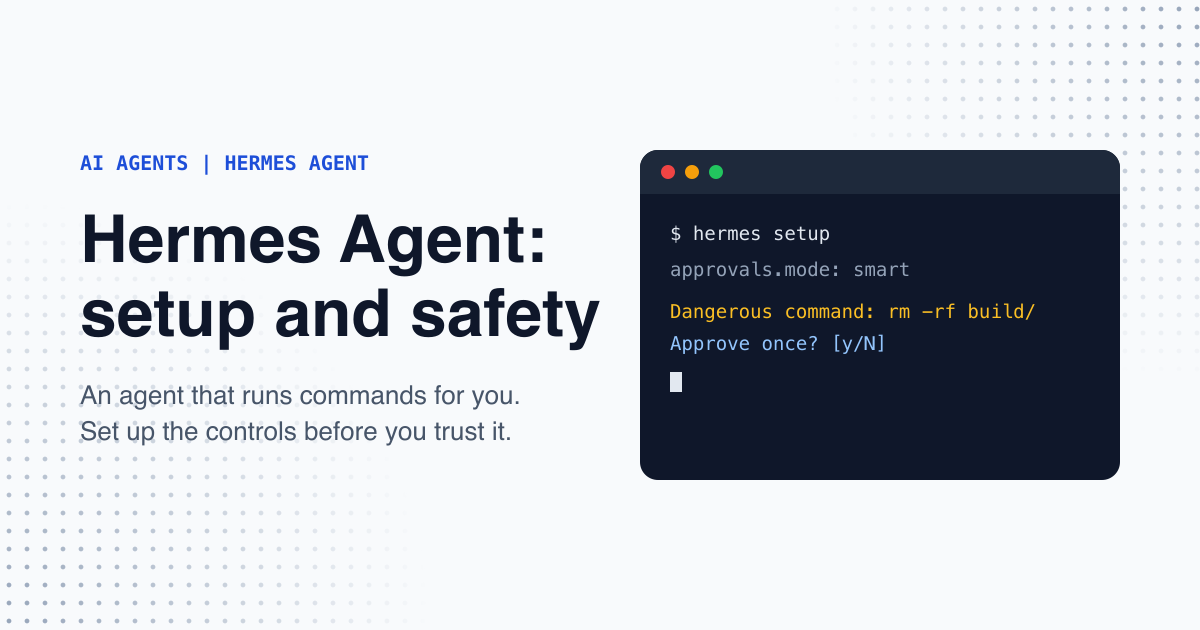
Before Hermes runs a shell command, it checks the command against a curated list of dangerous patterns. The list covers recursive deletes, disk writes, force-kills, and piping remote content into a shell. The approvals.mode setting in ~/.hermes/config.yaml decides what happens when a command matches.
| Mode | What happens |
|---|---|
| smart (default) | An auxiliary LLM assesses the command. Low-risk commands run for that one command only, genuinely dangerous commands are denied, and uncertain ones ask you. |
| manual | Prompts you before any flagged command runs. In the CLI this is an inline dialog. In messaging apps, the request is queued. |
| off | Skips all approval checks, the same as running with --yolo. The docs say to use it only in trusted, sandboxed environments. |
In the CLI, a prompt offers once, session, always, or deny, and deny is the default. If you do not answer within the timeout, which is 300 seconds by default, the command is denied.
Commands that are always blocked
A hardline blocklist refuses some commands no matter what. The docs list filesystem-root wipes, fork bombs, formatting a live root device, and zeroing a physical disk. Hermes refuses these even with --yolo, with approvals.mode set to off, or after you click always. The check runs before the approval layer, and there is no override flag.
YOLO mode skips the approval prompts for a session. You can turn it on with hermes --yolo, the /yolo command, or the HERMES_YOLO_MODE=1 environment variable. The hardline blocklist still applies.
A container changes the picture. For the docker, singularity, modal, daytona, and vercel_sandbox backends, the docs skip the dangerous-command check, because the container is treated as the security boundary. The local backend, which runs on your own machine, keeps the check.
Your own rules
approvals.deny takes glob patterns that block matching commands, even under --yolo or mode off. For example:
approvals:
  deny:
    - "git push --force*"
    - "*curl*|*sh*"
The eight layers
The security page describes eight layers, and each covers a different risk:
- User authorization: who can talk to the agent, through allowlists and DM pairing. If no allowlist is set, the gateway denies everyone.
- Dangerous command approval: a person approves destructive operations.
- File write safety: a denylist of protected paths, such as ~/.ssh and cloud credential folders, plus an optional write sandbox.
- Container isolation: Docker, Singularity, or Modal sandboxing with hardened settings. Docker containers drop nearly all Linux capabilities and block privilege escalation.
- MCP credential filtering: MCP server processes receive a short list of safe system variables and the variables you set for them.
- Context file scanning: detection of prompt injection in project files.
- Cross-session isolation: sessions cannot read each other's data or state.
- Input sanitization: working directory values for terminal backends are checked against an allowlist to prevent shell injection.
The docs also state a limit. The denylist reduces accidental damage, but it does not sandbox a hostile or compromised agent. The terminal tool runs as your user and can still read or overwrite denied paths with shell commands. For real containment, use an isolated backend with restricted mounts, credentials, and network access.
A practical rule: keep approval prompts on for work on your own machine, read each command before you approve it, and use Docker or another isolated backend for anything you do not fully trust.